

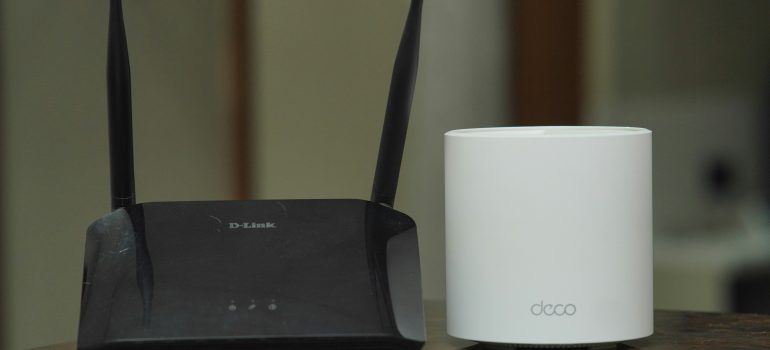
Bell WiFi Installation for Businesses: What to Plan Before the Visit
Quick Answer: Bell WiFi installation for a business usually involves checking the space, placing the main equipment, and setting up coverage so staff, payment systems, and guests connect reliably. Good results depend on planning coverage, wiring, and separate guest access before the visit. Services, equipment, and availability vary by address.
Introduction
A restaurant owner gets a new internet connection installed. The speed test at the front counter looks great. Then the kitchen display drops out, the patio has no signal, and guests complain that the WiFi does not reach the back tables.
The internet connection was fine. The WiFi layout was not.
Bell WiFi installation for a business is often less about the connection itself and more about how the signal is spread through the space. This article explains what installation usually involves, what to prepare, and the mistakes that cause weak coverage. If you want help planning a setup for your location, SARSH Solutions, an Authorized Bell Business Partner, can walk through the options.
How Does Bell WiFi Installation Work for a Business?
Bell WiFi installation for a business generally starts with confirming the service at the address, then placing the modem or router and arranging WiFi coverage across the space. A larger or more complex location may need extra access points and cabling. The exact steps, equipment, and who performs them depend on the service and address. VERIFY WITH SARSH/BELL: installation process, equipment, and technician or self-install options
A typical sequence looks like this:
- Service and address check. Confirm the connection type and what is available at the location.
- Site review. Look at the layout, wall materials, floors, and where devices are used.
- Equipment placement. Decide where the main equipment sits and where extra access points are needed.
- Cabling and power. Plan wired connections and power for any added equipment.
- Network setup. Configure the main network, and separate guest access where needed.
- Testing. Check coverage in the areas that matter, such as the counter, kitchen, back office, and patio.
A basic one-room office may need little more than a well-placed router. A multi-room restaurant, clinic, or warehouse usually needs a more deliberate layout.
Why Is WiFi Weak in Parts of a Business?
WiFi is weak in parts of a business when the signal has to pass through walls, floors, metal, or distance, or when one router is asked to cover too much space. Placement matters as much as the plan. Moving equipment out of a closet and adding access points where people actually work often fixes the problem.
Common causes include:
- Router in the wrong place. A router tucked in a back closet or office corner covers the front of the space poorly.
- Building materials. Concrete, brick, metal shelving, and kitchen equipment can block or weaken signals.
- Multiple floors. Signal does not travel well between levels from a single point.
- Too many devices. A single consumer router can struggle with many staff devices, payment terminals, and guests at once.
- Interference. Nearby networks and other equipment can reduce performance in busy areas.
Fixing these starts with a map of where WiFi is needed, not with a faster plan.
The Core Operational Problem
WiFi in a business carries more than browsing, and several systems depend on it at once.
Consider a few real-world patterns:
- Restaurants and cafes. Handheld order devices, kitchen displays, card terminals, delivery tablets, and guest WiFi all compete for the same signal.
- Hotels and motels. Guests expect strong WiFi in rooms, and staff systems need their own stable connection.
- Clinics and dental offices. Staff devices, cloud records, and patient WiFi need to stay separate and reliable.
- Retail stores. Card terminals, inventory scanners, and cameras need coverage across the whole floor.
- Warehouses. Handheld scanners and mobile devices move through large spaces with racking that can block signals.
- Offices. Laptops, video calls, and VoIP phones need steady coverage in meeting rooms and shared areas.
A good installation plans for these uses before anything is mounted.
What Should a Business Prepare Before a WiFi Installation?
Before a WiFi installation, a business should prepare a floor plan, a list of devices and where they are used, and any building access or landlord approvals the work may need. Having this ready shortens the visit and reduces repeat trips. Preparation does not need to be technical.
A simple preparation list:
- A floor plan or rough sketch. Mark where staff work, where guests sit, and where payment terminals and cameras are.
- A device list. Count phones, laptops, tablets, terminals, cameras, and smart devices.
- Coverage priorities. Note the areas where a drop in signal would hurt most.
- Access details. Know who can open telecom rooms, ceiling spaces, and utility closets.
- Landlord approval. In rented spaces, confirm whether drilling, cabling, or mounting needs permission.
- Timing. Schedule work outside your busiest hours or seasons.
Should a Business Use WiFi Extenders or Access Points?
For most businesses, wired access points give more reliable coverage than WiFi extenders, because they connect back to the network by cable rather than repeating a wireless signal. Extenders can help in small, low-demand spaces, but they often reduce performance when chained. The right choice depends on the layout and use. [VERIFY WITH SARSH/BELL]
Extenders repeat an existing signal. They are simple and inexpensive, but each hop can slow things down, and they are not ideal for payment systems or busy guest WiFi.
Wired access points connect to the main network with a cable and broadcast WiFi where it is needed. They are more reliable for busy locations, but they need cabling and power at each location.
Does a Business Need Separate Guest WiFi?
Yes, a business that offers guest WiFi should keep it separate from payment terminals and internal systems. Separation keeps customer devices away from business equipment and stops guest traffic from slowing important systems. It is a common part of a payment-conscious network setup. [VERIFY WITH SARSH/BELL and your payment provider’s requirements]
Guest WiFi is a service for customers, but it is also unpredictable load. A table of guests streaming video should never slow a card terminal. A proper setup uses separate networks for staff systems, payment terminals, and guests.
Common WiFi Installation Mistakes to Avoid
- Judging the setup by a single speed test. A strong signal at the router says nothing about the kitchen or patio.
- Putting guests and payments on one network. This mixes customer traffic with business systems.
- Chaining extenders. Each hop can reduce speed and reliability.
- Placing equipment in closets. Enclosed spaces weaken the signal.
- Ignoring outdoor areas. Patios, parking, and loading areas need their own coverage plan.
- Skipping landlord approval. Cabling or mounting without permission can cause delays or disputes.
- Forgetting future growth. More staff, devices, and cameras will need more capacity.
- Using weak or shared passwords. Staff network passwords should be managed and changed when people leave.
Comparing WiFi Setup Options for Businesses
The table below compares common setups at a general level. Suitability, equipment, and availability vary by location and should be confirmed directly.
| Requirement | Single Router | Router Plus Extender | Wired Access Points | Outdoor or Area Coverage (added) |
|---|---|---|---|---|
| Best for | Very small, open spaces | Small spaces with one weak spot | Restaurants, clinics, offices, retail, hotels | Patios, parking, and loading areas |
| Coverage across rooms | Limited | Moderate, can degrade | Strong when planned | Targeted outdoors |
| Number of devices | Low | Low to moderate | Moderate to high | Varies |
| Guest WiFi separation | Basic | Basic | Yes, with proper setup | Yes, with proper setup |
| Reliability for payments | Lower | Lower | Higher | Supplementary |
| Installation effort | Lower | Lower | Higher, needs cabling and power | Moderate |
| Typical fit | One-room offices | Temporary or low-demand fixes | Busy locations with many devices | Added to an indoor setup |
What to Look For When Choosing an Installation Provider
Before booking WiFi installation, confirm these points:
- Address-level availability. Ask what service and equipment are offered at your location.
- Scope of the installation. Ask whether it covers only the main equipment or also extra access points and cabling.
- Business support. Know who you call if coverage drops after the visit.
- Guest and staff separation. Ask how separate networks will be set up.
- Timeline. Get a realistic date and avoid your busiest weeks.
- Costs and contract terms. Ask about equipment fees, installation fees, and contract length in writing.
Practical Business Checklist
- Sketch your floor plan and mark where staff, guests, payment terminals, and cameras need WiFi.
- List every device that connects to WiFi and note which are business-critical.
- Confirm with your landlord whether cabling, drilling, or mounting needs approval.
- Ask how guest WiFi will be separated from payment and internal systems.
- Schedule installation outside your busiest period and test coverage in every key area before the technician leaves.
Key Takeaways
- Bell WiFi installation for a business is as much about coverage layout as it is about the connection.
- Weak WiFi usually comes from placement, building materials, and too much load on one router.
- Wired access points are generally more reliable than extenders for busy locations.
- Guest WiFi should be kept separate from payment and internal systems.
- Services, equipment, and timelines vary by address, so confirm details before booking.
Frequently Asked Questions
How does Bell WiFi installation work for a business? It generally starts with confirming service at your address, then placing the main equipment and arranging coverage across the space. Larger locations may need extra access points and cabling. Steps, equipment, and who performs the work vary by service and address, so confirm the details before booking.
What should I prepare before a business WiFi installation? Prepare a floor plan, a list of devices and where they are used, and any access or landlord approvals needed for cabling or mounting. Note the areas where signal matters most, such as the counter, kitchen, or back office. Schedule the visit outside your busiest hours to avoid disruption.
Why is my business WiFi weak in some areas? Weak spots usually come from router placement, thick walls, metal shelving, multiple floors, or too many devices on one router. A faster plan will not fix a coverage problem. Adding access points where people actually work, and moving equipment out of closets, often makes the biggest difference.
Are WiFi extenders good enough for a business? Extenders can help in small, low-demand spaces, but they often reduce speed when chained and are not ideal for payment systems or busy guest WiFi. Wired access points are generally more reliable for restaurants, clinics, and retail stores because they connect back by cable.
Do I need separate guest WiFi for my business? Yes, if you offer guest WiFi, keep it separate from payment terminals and internal systems. This keeps customer devices away from business equipment and stops guest traffic from slowing important systems. Check your payment provider’s requirements for details.
Why Business Owners Choose SARSH Solutions
A good WiFi setup starts with how your space is used, not with a one-size-fits-all package. SARSH Solutions is an Authorized Bell Business Partner that looks at your address, your layout, and your busy hours, then explains the options available. That includes being direct when a simple setup is enough, and when a planned, multi-access-point layout is the safer choice.
SARSH SOLUTIONS Phone: +1 (365) 866-2628
Website: https://sarshsolutions.ca/